

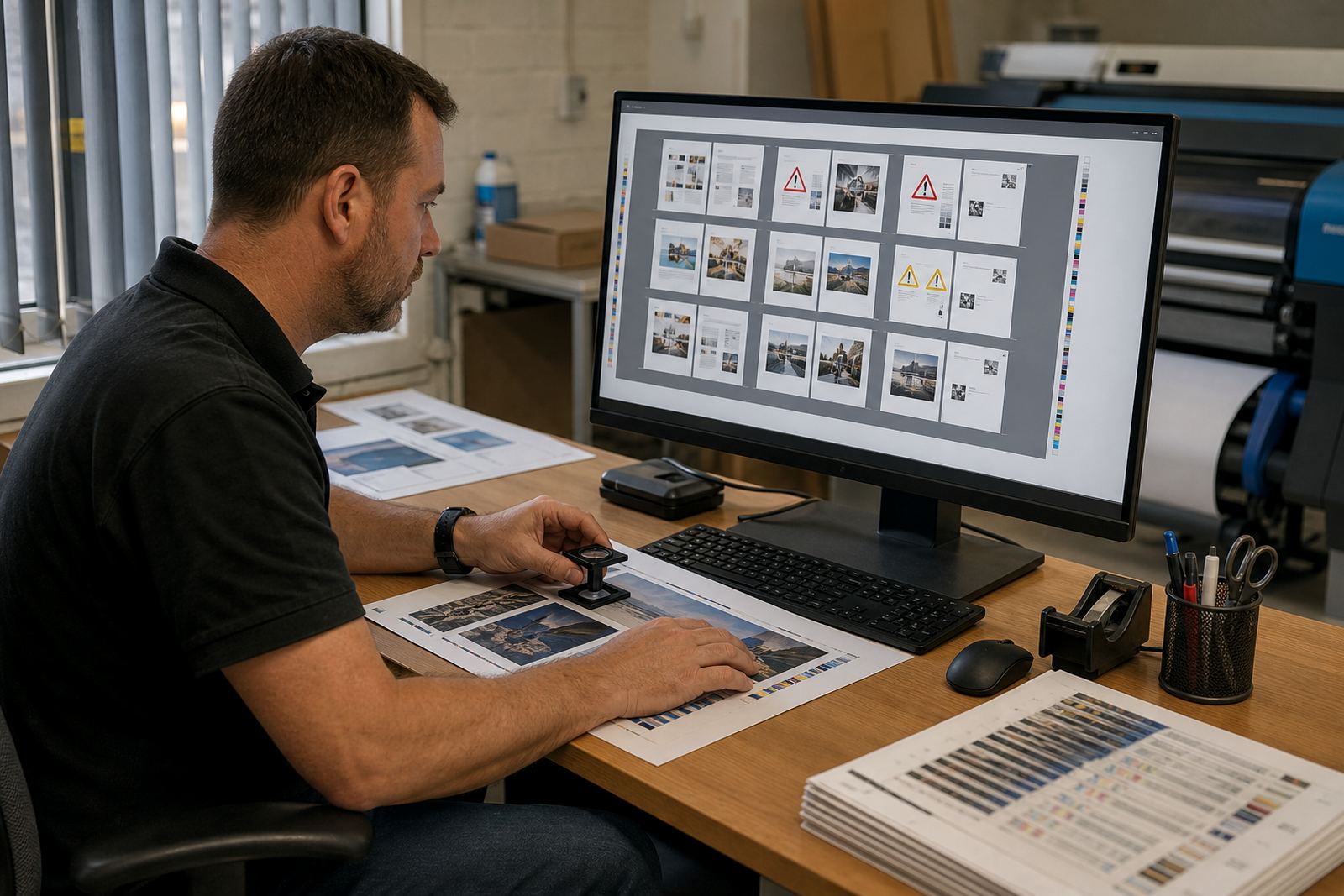
What the preflight layer checks before a file reaches print
Artwork Preflight sits inside the ordering flow and reads the file against the rules you set for each product. It can check finished size, bleed allowance, safety margin, image resolution, colour space, embedded fonts, page count, transparency handling and the accepted file format. Where a job needs a higher standard, the rule set can be tightened for that product only, so a business card is not judged like a pull-up banner or a self-adhesive label sheet.
The point is not to overcomplicate the cart. It is to flag weak files before the press room gets involved, so the customer sees what must be fixed while the order is still in motion. That keeps admin cleaner, and reduces the back-and-forth that tends to happen when artwork is sent in the wrong size or saved from a screen preview.
For print shops across Durbanville, Cape Town, Johannesburg, Pretoria and Durban, the same check can carry different job rules without changing the storefront structure. One product can demand a PDF with bleed, another can accept a JPG for proofing only, and another can allow layered artwork from a supplied template pack.
Artwork rules that suit common South African print products
The product works best when each item in the catalogue has its own artwork rule set. That is useful for anything with fixed dimensions, cut lines or variable data. Flyers, folded leaflets, menus, presentation folders, appointment cards, sticker sets and trade-only collateral all benefit from file checks that match the actual sheet size and production method.
For a simple upload flow, the system can accept one final file and run basic checks. For more controlled work, it can ask for a template-based upload where the customer drops artwork into a preset layout. That keeps spacing, safe zones and trim positions consistent across batches, especially where a print shop handles multiple branches or corporate accounts with their own artwork habits.
- Standard file checks for PDF, JPG and PNG submissions
- Template-based upload for fixed-size products
- Bleed and trim checks for cut-to-size work
- Resolution checks for crisp print output
- Artwork status flags for approved, needs attention or rejected files
Some shops want a stricter path for corporate reorders, others want a lighter path for retail traffic. Both are possible. The same system can support one product with manual proofing and another with an automated release rule, which is useful when a shop handles both quick-turn jobs and recurring brand work.
Sizing, formats and artwork limits that can be set per product
Artwork Preflight is built around rules rather than fixed assumptions. You can define finished size, bleed width, safe area, minimum resolution, accepted colour mode and allowed file types for each item. If a product needs a 3 mm bleed, that can be enforced. If another needs 5 mm because of its cut method or finishing margin, that rule can be set too.
In practice, that means the store can guide users into the correct file shape before the order reaches production. A poster can allow larger artwork dimensions, while a folded menu can demand panel-specific sizing. A business card may need a compact upload with a clear trim box, while a label job may need precise repeat spacing and a tighter tolerance on edge content.
- Finished size, bleed and safe zone fields
- Minimum pixel or DPI rules by product
- PDF, JPG, PNG and other permitted formats
- Single-page or multi-page acceptance settings
- Colour mode rules for print-ready output
Where a shop sells to both walk-in buyers and account clients, the same catalogue can carry different artwork rules by customer group. That is useful when a corporate portal must apply stricter preflight settings than the public storefront, or when one client has branded templates that should not be edited outside approved areas.
Where it fits inside a storefront and production flow
Preflight works best when it sits between product selection and final submission. A customer chooses a product, uploads artwork, the rules are applied, and the system shows what passes or what needs correction. If the file is acceptable, the order can move forward into proofing or production routing. If not, the status can point the user to the issue without forcing the studio to inspect every file manually.
This suits print shops that already run online pricing, delivery choices and order tracking in the same platform. The same job can move from quote to artwork check, then into proof approval and production status updates. For staff, that means fewer loose files in inboxes and fewer manual notes copied between systems. For the customer, the path is clearer and the artwork requirements are visible before money or time is wasted on the wrong file.
It also helps where a shop works with branches or teams spread across different towns. Durbanville can manage setup and templates, while a branch in another city can use the same rule set for intake and release. The artwork checks stay consistent, even if the people handling the jobs are different.
Setup work, file handling and what the shop needs in place
To get the preflight layer working properly, the store needs product dimensions, artwork allowances and proofing rules that match each item. That usually starts with template preparation, file acceptance settings and a decision on which warnings should stop a job and which should simply alert the customer. If a product has cutter marks, fold panels or variable artwork spaces, those details need to be mapped before launch.
Staff training matters as much as the rules themselves. The team needs to know how to read the flags, when to release a file, and when to send it back for correction. Admin users also need to understand how to adjust rules for new products without breaking older ones. For shops with multiple staff members touching the same order, clear roles prevent confusion at the proof stage.
- Product dimensions and trim settings
- Approved file formats and upload limits
- Proofing approval path for each item
- Staff permissions for overrides and rechecks
- Template files for recurring products
Where delivery or payment steps are already part of the storefront, preflight should sit neatly beside them rather than outside the order flow. That keeps the sequence intact from selection through to production release, which matters in a trade where small setup gaps can slow the whole queue.
Care, updates and the details to confirm before launch
Artwork rules need occasional review. New products get added, print methods change, and customers sometimes send files from older design habits that do not match the current setup. A tidy preflight setup should be checked against new sheet sizes, new finishing options and any changes in proofing practice. If a product starts drawing files from a different template, the bleed and safe zone values should be updated with it.
When ordering or setting up Artwork Preflight, confirm the products that need checking, the file formats to allow, the bleed standard, the minimum image resolution, whether proof approval is required, and which customer groups should see which rules. Also confirm whether the job should flag a warning, block the upload, or move the file into a manual review step. Those choices shape how strict the storefront feels in daily use.
In a Durbanville studio working with clients across South Africa, the most useful setup is the one that matches actual print habits. Clear rules, readable messages and practical product templates usually serve better than a loose file intake that needs constant manual rescue. A good preflight setup does not try to do the designer’s work, it just catches the mistakes that should never reach press.
Key facts
| File checks | Size, bleed, resolution, colour mode, fonts and format rules |
|---|---|
| Accepted uploads | PDF, JPG, PNG and other configured artwork types |
| Control level | Product-based rules with warnings, blocks or manual review |
| Typical use | Business cards, flyers, labels, menus, folders and similar print items |
| Workflow fit | Works with online proofing, pricing, payment and order tracking |
| Setup needs | Product dimensions, templates, artwork rules and staff permissions |